

Support teams face a tough problem. As your business grows, so do customer requests. But hiring more people isn't always the answer. Teams need a way to handle more volume without losing the personal touch that keeps customers happy.
That's where HubSpot customer agents come in. These AI-powered tools answer common questions automatically, using your existing content to give fast, helpful responses. They work 24 hours a day, handle routine requests, and send complex issues to your human team.
In this blog, we'll walk through what customer agents are, why personalization at scale matters, and how to set them up step by step in HubSpot Service Hub.
What Is a Customer Agent in HubSpot?

A customer agent is an AI tool powered by HubSpot's Breeze AI that answers customer questions. It pulls information from your knowledge base, website pages, uploaded files, and other content you give it.
When a customer asks a question, the agent searches through this content and responds with an answer.
Customer agents work across many channels. You can use them in live chat, email, WhatsApp, Facebook Messenger, and even phone calls. They can also detect what language the customer speaks and respond in that language.
The big difference between customer agents and basic chatbots is context. Customer agents connect to your CRM, allowing them to view customer history, past purchases, and open tickets. This means their answers feel more personal, even though they're automated.
When the agent can't answer a question or sees that a customer needs human help, it hands off the conversation to your support team. This balance between automation and human interaction is what makes customer agents work so well.
Why Personalize Customer Support at Scale?
Most businesses start with a small support team that knows every customer by name. But as the customer base grows, that personal touch becomes harder to keep. Teams face a choice: hire more people or accept slower, less personal service.
Neither option is great. Implementing AI in customer service can reduce labor costs by up to 90% by automating routine tasks like answering frequently asked questions and order tracking. But cutting costs doesn't have to mean cutting quality.
Customer agents solve this by combining speed with personalization. They use customer data from the CRM to make responses feel more relevant. They can pull in details like past purchases, open tickets, or account status.
This means customers get answers that fit their specific situation, not copy-paste replies that could be for anyone.
Can HubSpot Personalize Customer Support at Scale?

Yes. HubSpot customer agents use your CRM data to personalize responses while handling high volumes of requests. The agent can see a customer's purchase history, open tickets, and past interactions, so answers feel relevant to each person's situation.
This means you can deliver fast, personal support to hundreds or thousands of customers without needing a huge team. The agent handles routine questions automatically while your human team focuses on complex issues that need a personal touch.
How Do I Set Up Customer Agents in HubSpot Service Hub?
Setting up a customer agent in HubSpot is easy. You'll set up the agent's personality, connect your content, assign it to channels, and create rules for when it should hand off to a human. Here's how to do it step by step.
Step 1: Define Your Agent's Role and Personality
Start by giving your customer agent a name and personality. In HubSpot, you can choose from five types: Friendly, Professional, Casual, Empathetic, or Witty.
If you've already set up a brand voice in HubSpot, you can pick that option to keep the agent's tone the same as your company's other messages.
Personality matters because it shapes how customers feel about the conversation. A casual tone works well for a consumer app, while a professional tone might be better for a B2B software company.
Pick the personality that matches your brand and the experience you want customers to have. To set this up, go to Service, then Customer Agent in HubSpot. Click Set up your agent. Type in a name and pick a personality from the dropdown menu. Then click Next.
Step 2: Connect Your Knowledge Sources
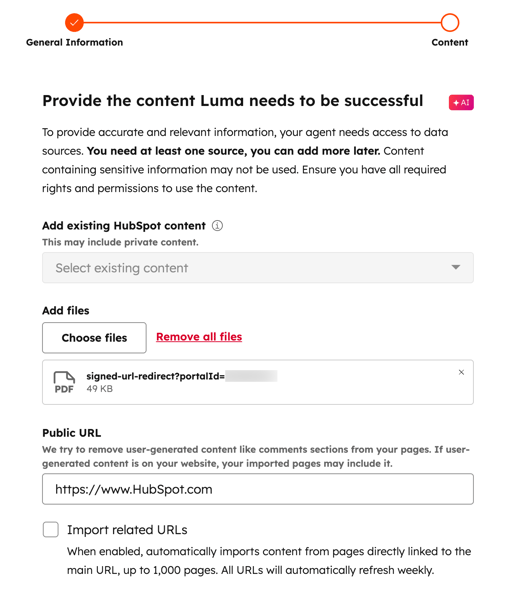
Your customer agent can only answer questions based on the content you give it. The more helpful, well-organized content you provide, the better it will work.
You can connect several types of content:
- HubSpot content: Knowledge base articles, website pages, landing pages, and blog posts
- Files: PDFs, Word docs, text files, and other formats (docx, htm, xhtml, pptx, csv, json, html, txt, pdf, xml, md)
- Public URLs: Type in a web address to sync outside pages. You can also check a box to import all pages from the same website automatically (up to 1,000 URLs)
- Short answers: Quick question-and-answer pairs for common questions
Use content that gets updated often and covers common customer questions. Break content into clear sections with headers. Write in simple language and skip complicated sentences. Include different ways people might ask the same question.
To add content, click Add existing content to pick HubSpot pages, articles, or blogs. Click Choose files to upload or pick existing files.
Type in a Public URL to sync outside pages. Pick Short answers to create custom question-and-answer pairs. Once you've added your sources, click Create agent.
Step 3: Assign Your Agent to Channels
After creating your agent, you'll assign it to the channels where customers reach out. HubSpot customer agents can work on live chat (on your website), email, WhatsApp, Facebook Messenger, calling (in beta testing), and custom channels (if you're testing that feature).
The channels you pick depend on where your customers like to get support. Most businesses start with live chat and email, then add messaging apps later.
Go to Service, then Customer Agent. Click the Manage tab. Click Deployment & Channels on the left side. Click Assign at the top right. Pick whether to connect a channel from an inbox or help desk. Pick the specific channel. Then click Next.
Step 4: Configure Handoff Rules
This is one of the most important steps. You'll decide what happens when your customer agent can't answer a question or when a customer needs human help.
You have two choices. The first is a handoff to a human agent. If the customer agent can't answer, it will ask the visitor to rephrase their question or forward the conversation to a human agent. You'll need to set routing rules so the conversation goes to the right person or team.
Here's how to set this up:
- Pick Handoff to a human agent
- Click the If the AI can't answer, assign to dropdown
- Pick No one (conversations go to the Unassigned view) or Specific users and teams
- Choose the users or teams who should get these conversations
- The chat avatar usually updates to show the newly assigned user. Uncheck the Update chat heading avatar box if you don't want this
The second choice is to stay assigned. The customer agent sends a message stating that handoff isn't available and remains on the conversation. This works well if you want the agent to handle everything without human backup, but it's less common.
Once you've made your pick, click Assign. Please note that only users with paid Sales Hub or Service Hub seats can be included in routing rules. Also, the customer agent assigns conversations based on whether users are available, not based on chat widget settings.
Step 5: Customize Availability Messaging
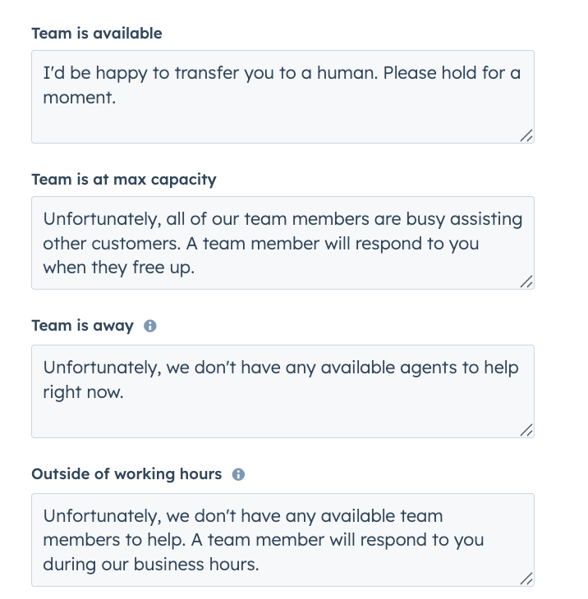
Customers expect clear information, even when your team isn't around. You can set custom messages for different times so customers always know what to expect.
To customize messages, go to Service, then Customer Agent. Click the Manage tab. Click Handoff Rules on the left side. Pick Availability Messaging. Use the text boxes to type in messages for when your team is available, away, at max capacity, or outside of working hours.
These messages are sent based on the user's working hours and availability settings. If your team works 9 to 5 Eastern Time, customers who reach out at 8 PM will see the outside of working hours message automatically.
Step 6: Set Handoff Triggers
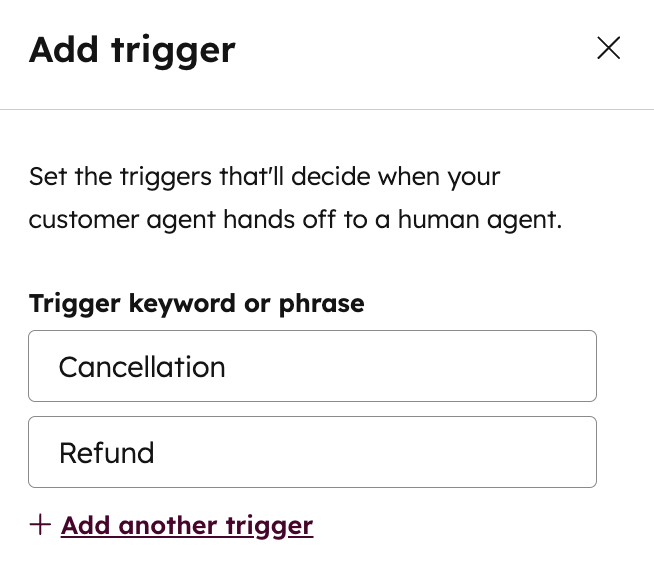
Some customer requests should always go to a human, even if the customer agent could answer them. Handoff triggers let you pick keywords or phrases that automatically send the conversation to your team.
For example, if a customer says cancellation, refund, or billing error, you probably want a human agent to step in right away. These are touchy issues where empathy and flexibility matter more than speed.
Here's how to set up handoff triggers. Go to Service, then Customer Agent. Click the Manage tab. Click Handoff Rules on the left side. Pick Triggers. Click Add trigger. Type in a word or phrase like cancellation, refund, or speak to a person. Then click Create.
Triggers only work on channels set up to hand off to human agents. If you've set your agent to stay assigned, triggers won't turn on.
Step 7: Test and Preview Your Agent
Before your customer agent goes live, you should test how it responds to real questions. HubSpot lets you preview and test your agent without using HubSpot Credits, so you can try things out freely.
To test your agent:
-
Go to Service → Customer Agent.
-
Click Test [agent name] at the top right.
-
Choose from the Test questions or type your own question in the chat box.
-
Click Actions to test tasks like booking a meeting
Look at Message Insights on the right side to see why the agent responded that way, which sources it used, and what triggers turned on.
If a response needs to be better, click Improve response and use the dropdown menu to change how the agent should handle similar questions next time.
How Do Customer Agents Improve Customer Experience?

Customer agents deliver several benefits that directly change how customers feel about your support.
Faster Responses
Customers don't have to wait for a human agent to become free. Integrating AI tools has led to an 87% reduction in average customer service resolution times for companies like Lyft, significantly enhancing operational efficiency.
For simple questions like How do I reset my password or Where's my order, the agent responds right away with the right answer.
24/7 Availability
Your customer agent works around the clock. Customers in different time zones or those who reach out after business hours still get help. This is really valuable for global businesses or small teams that can't afford to staff support overnight.
Consistent Quality
Every answer your customer agent gives is based on the same content sources. There's no difference in tone, accuracy, or helpfulness. Customers get the same high-quality experience no matter when they ask.
Free Human Agents for Complex Issues
Access to AI assistance has increased worker productivity, with agents resolving 15% more issues per hour on average. When customer agents handle routine questions, your human team can focus on complex cases that need problem-solving, empathy, or creative solutions.
This makes the job more satisfying for your team and makes sure customers get the right kind of help.
Real-Time Learning
Customer agents improve over time. As you update knowledge base articles or add new content, the agent automatically learns from those changes. This means your support gets smarter without extra work.
Work Smarter, Not Harder
Customer agents make it possible to deliver fast, personal support without burning out your team. They handle routine questions around the clock, send complex issues to humans, and learn from your content to get smarter over time.
Setting them up in HubSpot Service Hub is easy. Pick your agent's personality, connect your knowledge sources, assign it to the right channels, and set up handoff rules so customers always get the help they need.
The result is a support system that grows with your business, keeping customers happy while freeing your team to focus on what they do best.
Get Expert Help Setting Up Your Customer Agent
Origin 63 helps businesses set up HubSpot customer agents to deliver personal support at scale. We'll guide you through setup, improve your knowledge sources, and train your team so you can respond faster and work smarter.
Ready to upgrade your support? Talk to Origin 63 today and start building a customer agent that works for you.









.png?width=90&height=90&name=Arrows%20Partner%20Badge-test%20(1).png)