

Some customer support requests are simple questions that any team member can answer. Others need specific expertise, fast action, or careful attention based on customer status. When tickets land in the wrong hands, response times suffer, and customers notice.
HubSpot Service Hub helps solve this problem with conditional routing rules. You can set up rules that automatically send each ticket to the right person based on specific conditions like priority, customer type, SLA status, or the channel it came from.
In this blog, we'll walk through how conditional routing works in HubSpot, why it matters for support teams, and how to build routing rules that improve speed, accuracy, and customer satisfaction.
What Are Conditional Routing Rules in Service Hub?

Conditional routing rules are automatic filters that assign tickets to specific users or teams based on the details of each request.
Instead of treating every ticket the same way, HubSpot looks at things like who the customer is, how urgent the issue is, and where the ticket came from, and then routes it accordingly.
For example, you can create a rule that says:
- If a ticket is marked "High Priority," send it to your senior support team.
- If a customer is on an Enterprise plan, route their tickets to a dedicated account manager.
- If a ticket comes in through live chat during working hours, assign it to the team member with the fewest open tickets.
These rules run automatically, so your team doesn't have to manually sort incoming requests. Tickets get to the right person faster, and customers get better service.
How Do I Set Up Ticket Routing in HubSpot?
Setting up ticket routing in HubSpot Service Hub starts with understanding your team's structure and support needs. Before you build any rules, think about the conditions that should determine where tickets go. Here are the main steps:
1. Connect Your Support Channels
Routing rules work best when all your customer touchpoints are connected to HubSpot. This includes email, live chat, forms, WhatsApp, calling, and any other channels your customers use to reach you.
When these channels are connected, every request automatically becomes a ticket in Service Hub. That means routing rules can take effect the moment a customer reaches out, no matter how they contact you.
2. Define Your Routing Criteria
Next, decide what conditions should trigger each routing rule. HubSpot lets you route tickets based on:
- Priority level: Send urgent tickets to senior reps who can respond quickly.
- Customer type: Route tickets from VIP or Enterprise customers to dedicated account managers.
- Ticket source: Assign chat tickets to your live support team and email tickets to a different group.
- SLA status: If a ticket is at risk of missing its SLA deadline, escalate it to a manager.
- Skills or expertise: Route technical issues to product specialists and billing questions to finance.
The more specific your criteria, the more effective your routing will be. Take time to map out which types of tickets need special handling and which team members are best suited to handle them.
3. Set Up Routing Rules in Service Hub
Once you know what conditions matter, you can build your routing rules in HubSpot:
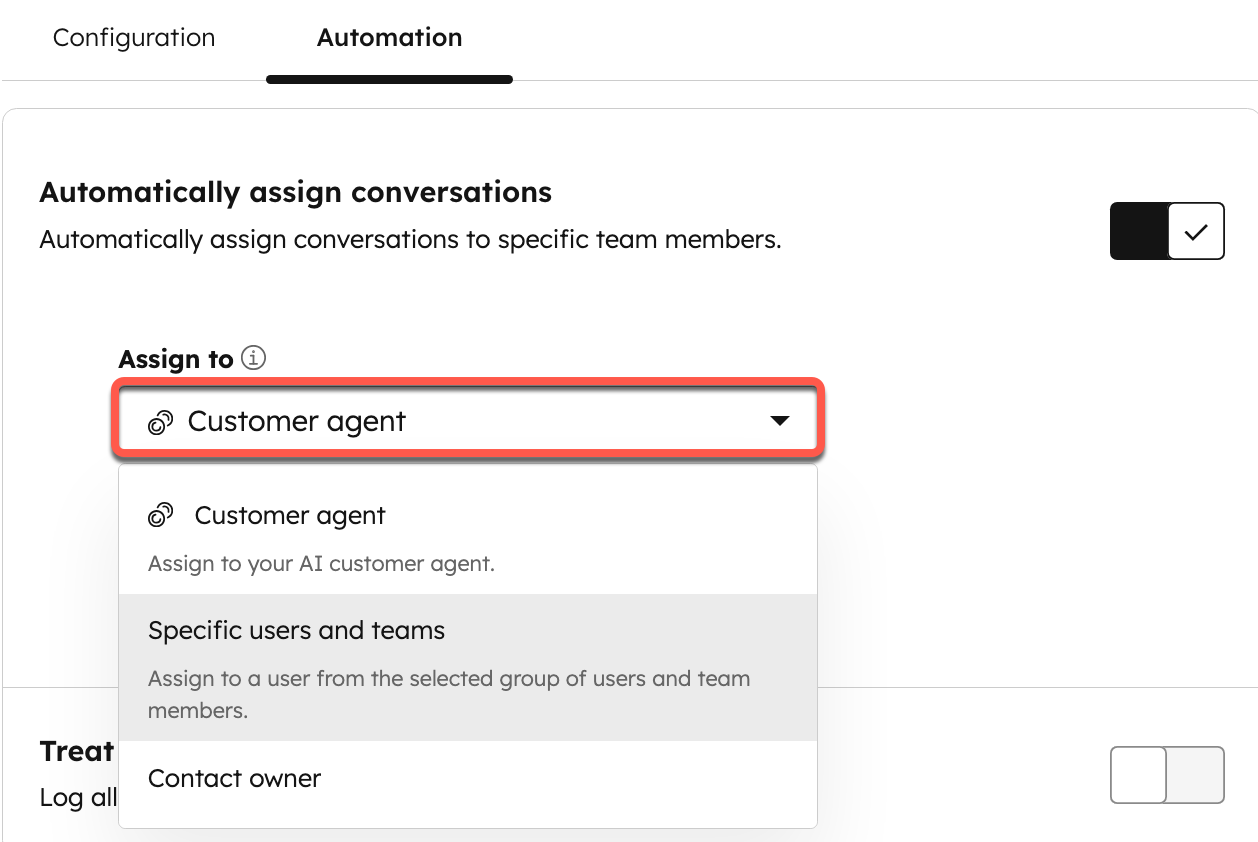
- Navigate to your channel settings. Go to Settings > Inbox & Help Desk > Help Desk. Under Ticket sources and routing, select Channels.Hover over the channel you want to set up routing for (like team email, form, or WhatsApp) and click Edit, then go to the Automation tab.
- Choose your routing method. Click the Assign incoming tickets to dropdown menu and select how tickets should be assigned. You can route to specific users and teams, the contact owner, a team only (without a specific owner), or leave tickets unassigned for manual triage
- Set your distribution method. Use the Distribution dropdown to decide how tickets are spread across your team.
- Choose Load Balanced to send tickets to the person with the fewest open cases, Round Robin (BETA) for rotating assignment, or Random for random distribution.
-
- Tickets only go to available agents, but you can clear the Assign to available users only checkbox to assign tickets even when agents are offline.
- These basic settings give you a solid starting point. But if you need more advanced rules, HubSpot also offers skill-based routing and rulesets that let you add multiple conditions.
Can HubSpot Route Tickets by SLA or Customer Type?

Yes, HubSpot Service Hub can route tickets based on SLA status and customer type. This is especially useful for teams that need to prioritize certain customers or make sure high-stakes issues are handled quickly.
Routing by SLA Status
SLAs (Service Level Agreements) set expectations for how quickly your team will respond to or resolve tickets. If you've set up SLA tracking in HubSpot, you can create routing rules that escalate tickets when they're at risk of missing their deadline.
For example, if a ticket has been open for 12 hours and the SLA is 24 hours, you can automatically reassign it to a manager or senior rep who can resolve it faster. This keeps your team on track and prevents missed commitments.
To route based on SLA, use workflows or skill-based routing rulesets that check the ticket's SLA status and trigger actions based on the time remaining.
Routing by Customer Type
Customer type is another powerful routing condition. If you have VIP customers, Enterprise accounts, or free trial users, you can route their tickets to different teams based on their level of service.
For instance:
- Route tickets from Enterprise customers to a dedicated account manager who knows their history.
- Send tickets from free trial users to a team focused on onboarding and education.
- Assign tickets from customers with high lifetime value to your most experienced reps.
To route by customer type, you'll need to make sure your contacts have properties like "Customer Tier," "Subscription Level," or "Account Status" set up in HubSpot. Then, you can use these properties as conditions in your routing rules or workflows.
Route Tickets in Help Desk Based on Agent Skills
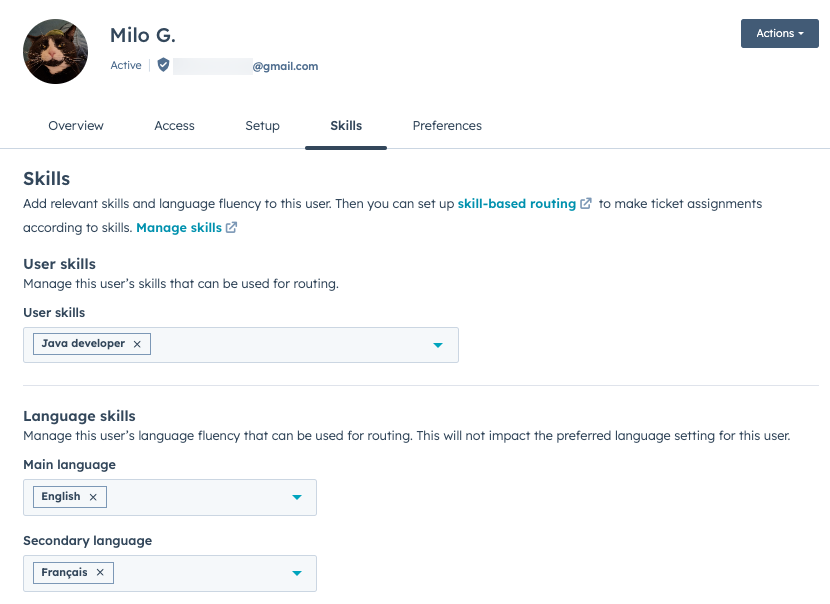
For teams with specialized expertise, skill-based routing is one of the most effective ways to improve support quality. HubSpot Service Hub Enterprise includes a skill-based routing feature that lets you assign skills to users and then route tickets based on those skills.
How Skill-Based Routing Works
First, you create skills in your HubSpot account. Skills can include languages your team speaks or custom skills like "Billing Expert," "Product Specialist," or "API Support."
Next, you assign those skills to users on your team. For example, one rep might have skills in Spanish, billing, and onboarding, while another rep has skills in API support and technical troubleshooting.
Finally, you create rulesets that route tickets to users based on the skills they need. If a ticket comes in with a language preference for Spanish, HubSpot will route it to a rep who speaks Spanish. If a ticket is tagged as a technical issue, it goes to someone with technical skills.
Setting Up Skill-Based Routing
Here's how to set it up:
- Create and assign skills to your team. Go to Settings > Routing > Skills tab. Review existing skills (HubSpot includes supported languages by default) or click Create skill to add custom ones like "Billing Expert" or "API Support."
- Then, go to Settings > Users & Teams, click on a user, select Edit user, and navigate to the Skills tab to assign the relevant skills to each team member.
- Build your routing ruleset. Go back to Settings > Routing and click Create ruleset. Enter a name and select a channel, then click Next.
- Add conditions based on ticket properties or customer details, and select the teams or skills that should receive those tickets.
- Save and test your rules. Click Save when you're done, then monitor how tickets are being routed to make sure they're landing with the right people.
- Skill-based routing ensures that every ticket lands with someone who has the right expertise to solve it quickly. This reduces back-and-forth, improves first-contact resolution, and makes customers feel like they're talking to someone who truly understands their issue.
How Do Routing Rules Improve Support Response Times?
Routing rules improve support response times by removing the guesswork from ticket assignment. Instead of reps having to scan a queue and decide what to work on next, tickets are automatically assigned to the right person as soon as they arrive.
Here's how that makes a difference:
1. No More Manual Sorting
When tickets come into a shared inbox, someone has to read through them, figure out who should handle each one, and manually assign them. This takes time, and during busy periods, tickets can sit unassigned for too long.
Routing rules eliminate this step. The moment a ticket is created, HubSpot checks its conditions and assigns it automatically. Your team can start working on tickets right away instead of spending time organizing them.
2. Tickets Go to the Right Person the First Time
Routing rules make sure tickets are handled by the person best suited to solve them. If a billing question goes to someone who doesn't handle billing, they have to reassign it, which delays the response.
With conditional routing, tickets land with the right team member from the start. That means faster first responses and fewer handoffs, which customers appreciate.
3. Workload Is Balanced Across the Team
HubSpot's load-balanced distribution ensures that tickets are assigned to the person with the fewest open tickets. This prevents one rep from getting overwhelmed while others sit idle.
When the workload is spread evenly, every ticket gets attention faster. Reps aren't buried under a pile of requests, and no ticket slips through the cracks.
4. High-Priority Issues Get Immediate Attention
Routing rules can prioritize urgent tickets by sending them to senior reps or managers who can act quickly. This keeps your team from accidentally working on low-priority issues while critical ones wait.
For example, if a high-value customer reports a major problem, a routing rule can escalate that ticket immediately. The customer gets help faster, and your team avoids potential churn.
The stakes are high when it comes to service quality. 73% of consumers say they would leave a company after just one bad experience. Routing rules help you catch critical issues early and make sure they're handled by someone who can resolve them quickly.
Practical Examples of Conditional Routing Rules

Let's look at a few real-world scenarios where conditional routing rules make a big difference:
Example 1: Route by Customer Tier
A SaaS company has three customer tiers: Free, Pro, and Enterprise. They want to make sure Enterprise customers always get top-tier support.
They create a routing rule that checks the "Customer Tier" property on each contact. If the tier is "Enterprise," the ticket is automatically assigned to a dedicated account manager. If the tier is "Free," the ticket goes to a general support queue.
This ensures Enterprise customers get personalized service while the rest of the team handles standard requests. The investment pays off.
75% of customers will spend more on brands that offer good customer experiences, and prioritizing high-value customers is one of the most direct ways to build that loyalty.
Example 2: Route by Priority and SLA
A support team uses priority levels to mark tickets as Low, Medium, or High. They also track SLAs to make sure tickets are resolved on time.
They set up a routing rule that assigns High Priority tickets to senior reps and monitors SLA status. If a ticket is at risk of missing its SLA, it's automatically escalated to a manager who can intervene.
This keeps response times fast for urgent issues and prevents SLA breaches.
Example 3: Route by Channel
A company offers support through email, live chat, and phone. They have separate teams for each channel because the skills required are different.
They create routing rules for each channel. Chat tickets go to a team trained in fast, conversational support. Phone tickets go to reps with strong communication skills. Email tickets go to a team that handles detailed, research-heavy questions.
This ensures every channel has the right kind of expertise backing it up.
Example 4: Route by Language
A global company supports customers in English, Spanish, and French. They want to make sure customers can get help in their preferred language.
They use skill-based routing to assign language skills to each rep. When a ticket comes in with a language preference, HubSpot routes it to a rep who speaks that language.
This creates a smoother experience for international customers and reduces confusion. With AI-powered tools making personalization easier than ever, 88% of CX specialists view personalization as critical for driving customer loyalty.
Routing tickets based on language is one of the simplest and most effective ways to deliver that personalized experience.
Tips for Building Effective Routing Rules

Routing rules are powerful, but they only work well if they're set up thoughtfully. Here are a few best practices to keep in mind when setting up your routing rules:
Start Simple
Don't try to create complex rules all at once. Start with one or two basic conditions (like priority or customer type) and test them. Once you see how they work, you can add more conditions and refine your setup.
Use Workflows for Advanced Logic
If you need routing rules with multiple conditions or complex logic, consider using HubSpot workflows. Workflows give you more flexibility to create "if-then" scenarios and trigger actions based on ticket properties, customer behavior, or time-based conditions.
For example, you can create a workflow that checks if a ticket is marked High Priority and if the customer is on an Enterprise plan. If both conditions are true, the ticket is assigned to a specific manager.
Monitor Performance
After you set up routing rules, keep an eye on how they're working. Use HubSpot's reporting tools to track metrics like average response time, ticket volume by team, and SLA compliance.
If you notice certain rules aren't working as expected, adjust the conditions or distribution settings. Routing rules should evolve as your team and customer base grow.
Set Agent Availability
Routing rules work best when they respect agent availability. Make sure your team members have their working hours set up in HubSpot so tickets are only assigned to reps who are online.
If a rep is marked as "Away," HubSpot won't assign them new tickets, which prevents requests from piling up when someone is out of the office.
To set working hours, go to Settings > Users & Teams, click a user record, then go to the Preferences tab and select Working hours. Choose the timezone and add hours for each day of the week.
Collect Feedback From Your Team
Your support reps are the ones using these routing rules every day, so get their input. Ask them if tickets are landing with the right people, if the workload feels balanced, and if there are any issues that need special routing.
Regular feedback helps you fine-tune your rules and make sure they're actually improving your team's workflow.
Why Conditional Routing Matters
Conditional routing isn't just about saving time. It's about making sure every customer gets the right kind of help, from the right person, at the right time. When tickets are routed correctly, response times drop, customer satisfaction goes up, and your team works more efficiently.
For growing support teams, conditional routing is essential. As ticket volume increases, manual assignment becomes impossible to sustain. Routing rules give you the structure you need to scale without sacrificing quality.
HubSpot Service Hub makes this easy by connecting routing rules directly to your CRM. Every ticket is tied to a customer record, so you have full context when building rules.
And because HubSpot tracks everything, you can measure the impact of your routing decisions and keep improving over time.
Work With Experts to Maximize HubSpot Service Hub
Origin 63 helps businesses implement HubSpot Service Hub the right way, from basic ticket routing to advanced skill-based rulesets and workflows.
We'll work with your team to understand your support structure, build routing rules that fit your needs, and train your reps so they know how to use the system effectively.
Ready to improve your support response times and deliver better customer service? Talk to Origin 63 today, and let's build a routing strategy that works.











.png?width=90&height=90&name=Arrows%20Partner%20Badge-test%20(1).png)