

A small business owner using your basic plan has different questions than an enterprise client managing multiple locations. A customer in Europe might need compliance details that don't apply to someone in North America.
When everyone sees the same knowledge base, relevant answers get buried under content that doesn't apply to them. HubSpot Service Hub Enterprise lets you create multiple knowledge bases so you can organize content for different audiences.
In this blog, we'll walk through how to segment knowledge bases in HubSpot, why it matters, and how to organize them so customers can help themselves faster.
Can You Segment a Knowledge Base in HubSpot?

Yes. HubSpot Service Hub Enterprise allows you to create up to 25 separate knowledge bases with up to 10,000 total articles across your account. Each knowledge base can have its own domain, categories, and access settings.
You can build entirely separate self-service experiences for different groups. For example, you might create one knowledge base for free users with basic setup guides, another for paying customers with advanced features, and a third for partners with reseller documentation.
Each knowledge base can also be configured for private content, so you control who sees what. This is especially useful if you need to segment by customer tier or provide restricted content to specific groups.
How Do I Organize Multiple Knowledge Bases in HubSpot?
Organizing multiple knowledge bases starts with understanding your audiences and what they need. Here are the most common ways businesses segment their knowledge bases:
1. By Product or Service Line
If your company offers multiple products, each one might need its own knowledge base. This keeps content focused and prevents customers from wading through articles about products they don't use.
For example, a software company with separate products for sales, marketing, and customer service could create three knowledge bases. Each one would have its own setup guides, troubleshooting articles, and feature documentation.
2. By Customer Tier
Different subscription levels often come with different features. Segmenting by tier ensures customers only see content that applies to their plan.
You might create a knowledge base for free users with basic how-to articles, another for professional users with advanced tutorials, and a third for enterprise customers with integrations and API documentation.
This keeps the experience relevant and avoids confusing customers with features they don't have access to.
3. By Geography or Language
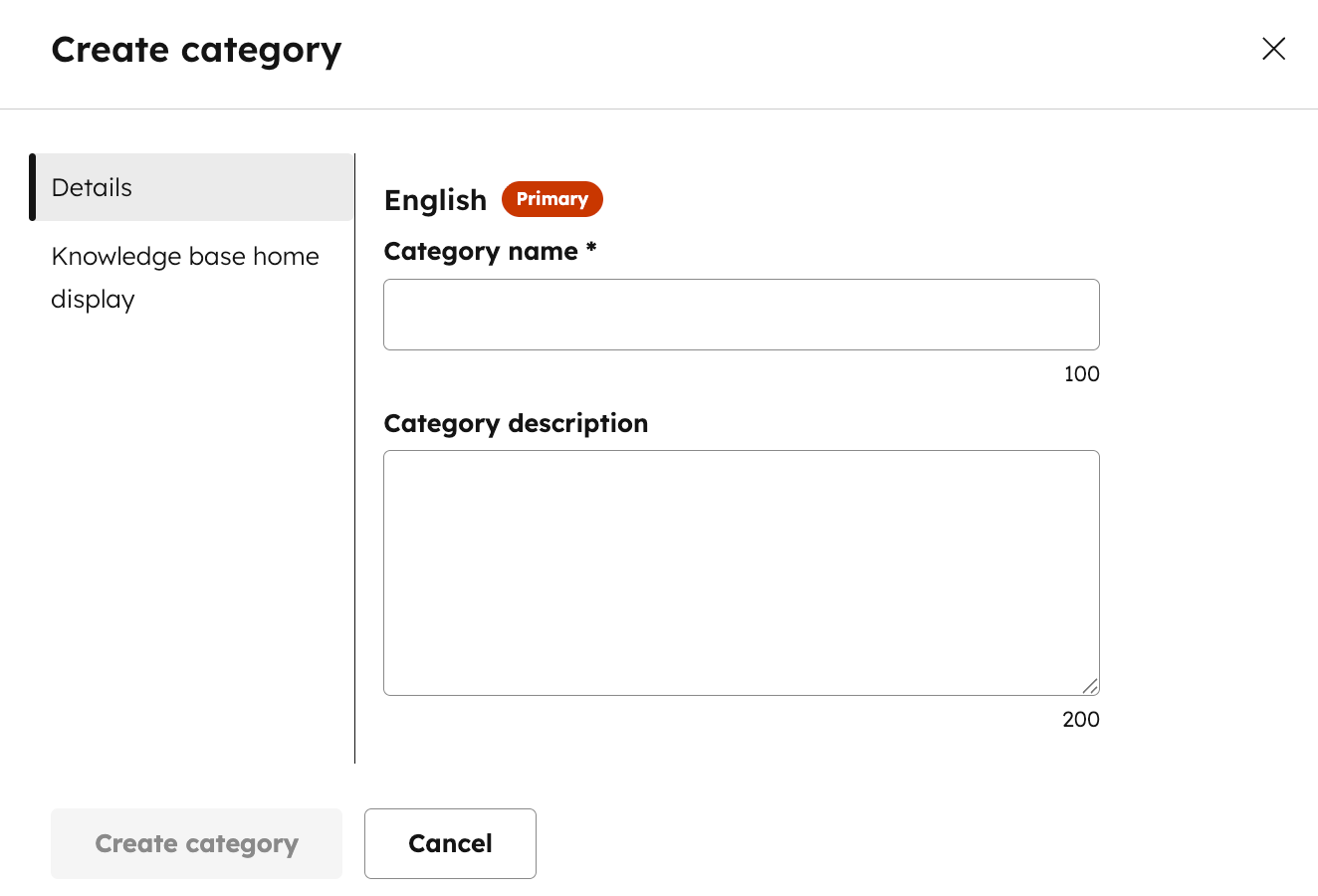
Customers in different regions may need localized content. This could include language translations, compliance information, or region-specific features.
HubSpot lets you assign a language to each knowledge base, making it easier to deliver content in the customer's preferred language. You can also use separate domains or subdomains for each region, which helps with SEO and makes it clear to customers they're in the right place.
4. By Customer Type
Some businesses serve both end users and partners or resellers. These groups need very different information. End users want help using the product, while partners need sales enablement, onboarding resources, and support policies.
Creating separate knowledge bases for each group keeps content organized and ensures sensitive partner information isn't visible to regular customers.
How Do I Deliver Personalized Self-Service with HubSpot?
Once you've decided how to segment your knowledge bases, here's how to set them up in HubSpot:
Step 1: Create Additional Knowledge Bases
Start by creating a new knowledge base for each audience segment. In your HubSpot account, navigate to Content > Knowledge Base in the settings menu. Click the Current View dropdown and select Add a knowledge base.
You'll need to enter a knowledge base title that's visible to visitors, select the language, and choose the domain where it will be hosted. In the knowledge base slug field, enter the text that will appear in your URL (for example, "enterprise-help" or "partner-resources").
If your knowledge base language doesn't match your domain's primary language, select the option to use a language slug in the URL.
After clicking next, you'll select a template and configure your default categories. This process creates a completely separate knowledge base with its own URL, categories, and settings.
Step 2: Configure Access Settings
If you want to restrict access to certain knowledge bases, you can configure private content settings. This is useful for customer tiers, partner portals, or internal teams.
For each knowledge base, you can set access controls like:
- Public: Anyone can view the content.
- Access group membership required: Only specific contacts can access it.
- Single sign-on (SSO) required: Visitors must log in through your SSO provider.
This ensures customers only see content that's relevant and authorized for them.
Step 3: Organize Content with Categories and Tags
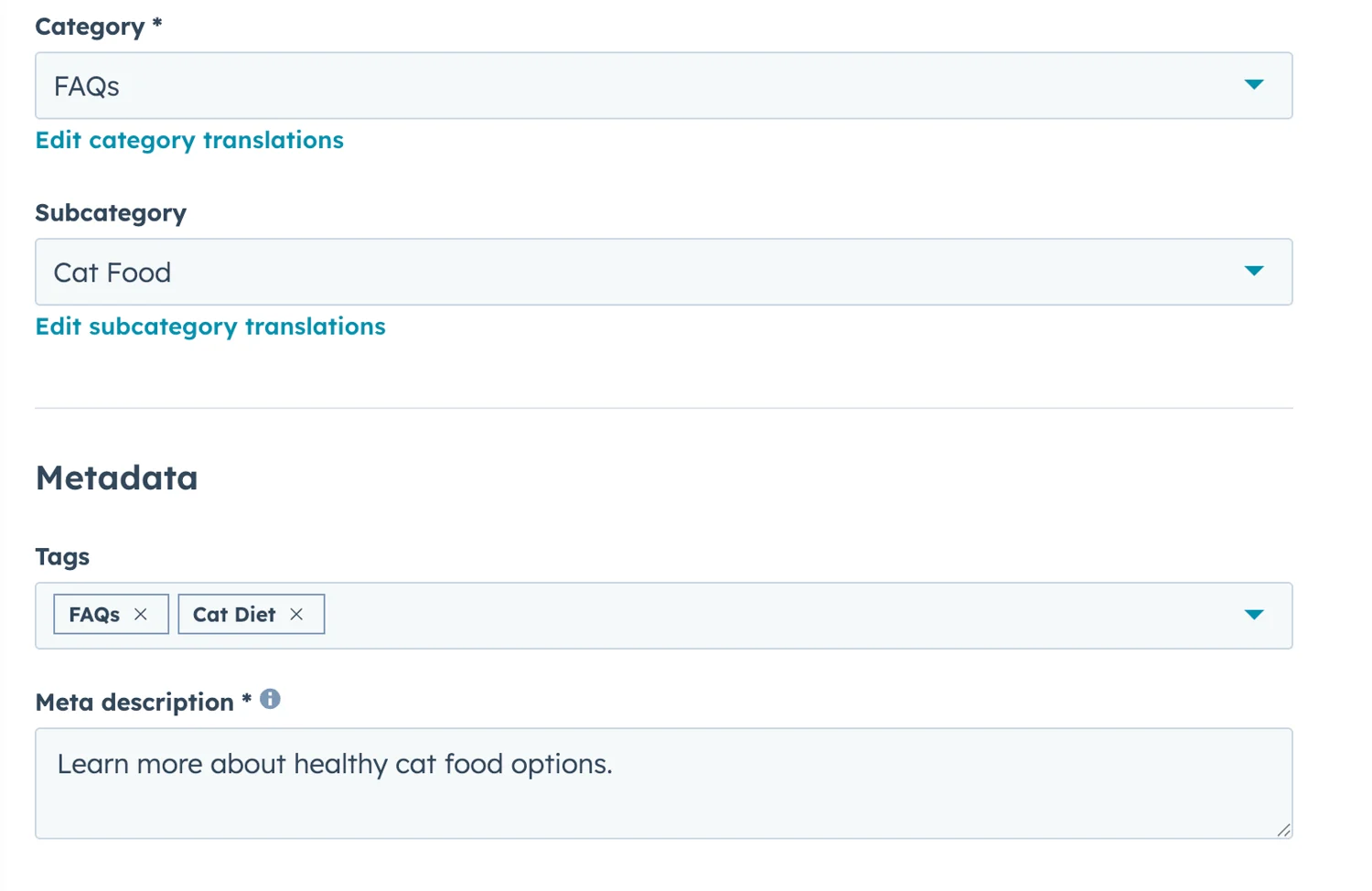
Within each knowledge base, use categories and subcategories to organize articles. For example, an enterprise knowledge base might have categories like "Advanced Features," "Integrations," and "API Documentation."
Tags also help improve search results, making it easier for customers to find what they need quickly. After just 10 minutes of searching online, 52% of customers will give up and call or email a company's support team instead, so making content easy to find is critical.
Step 4: Use Knowledge Bases in Conversations
You can connect specific knowledge bases to live chat or bot conversations. This ensures that when a customer reaches out, the chatbot or support rep can pull articles from the right knowledge base based on who the customer is.
To set this up, navigate to your conversations settings and select which knowledge base should be used for each chat or bot flow.
Step 5: Connect Secondary Domains
If you want to host knowledge bases on different subdomains or domains, you can connect additional domains in your HubSpot settings. This is helpful for regional knowledge bases or partner portals.
- Navigate to Content > Domains & URLs.
- Click Connect a domain.
- Select Secondary, then choose Knowledge base as the content type.
- Finish connecting your domain.
This gives each knowledge base its own URL, making it easier for customers to find and bookmark the right content.
What's the Best Way to Structure a Knowledge Base for Different Customers?
The best structure depends on your business, but here are some best practices that work across industries:
Start with Clear Audience Definitions
Before you create multiple knowledge bases, map out your customer segments. Ask yourself what makes each group different. What unique questions or needs does each group have? What content should be shared across all groups, and what should be segmented?
For example, a SaaS company might define three segments:
- Starter plan users: Small businesses needing basic setup guides and feature tutorials.
- Professional plan users: Mid-sized teams needing advanced workflow automation and integration guides.
- Enterprise customers: Large organizations needing API documentation, SSO setup, and custom reporting resources.
Each group has different technical needs and product access levels, so mixing them into one knowledge base creates confusion.
Keep Shared Content Separate

Some content applies to all customers. Instead of duplicating it across multiple knowledge bases, keep a general knowledge base for shared topics and link to it from your segmented bases.
For example:
- General knowledge base: Password resets, billing, account updates, cancellation policies.
- Product-specific knowledge bases: Feature tutorials, integrations, troubleshooting unique to each plan.
This reduces maintenance since you only update shared content once.
Use Naming Conventions That Make Sense
Your knowledge base titles, URLs, and categories should be clear and intuitive. If a customer lands on your knowledge base, they should immediately know if they're in the right place.
Good naming conventions:
- URL: help.yourcompany.com/enterprise
- Title: "Enterprise Help Center"
- Categories: "Getting Started," "Advanced Features," "Integrations"
Poor naming conventions:
- URL: yourcompany.com/kb-ent-v2
- Title: "Tier 3 Resources"
- Categories: "Onboarding," "Power User Tools"
The first set is clear and customer-friendly. The second uses internal jargon that customers won't recognize.
Test the Search Experience
Self-service only works if customers can find what they need. 91% of customers said they would use a knowledge base if it were available and suited to their needs. Over half say the main reason they can't resolve an issue on their own is that there's too little information available.
Try this: Give real customer questions to someone unfamiliar with your knowledge base. Can they find answers in under two minutes? If not, you may need to add more articles, improve titles, use better tags, or make your search bar more prominent.
Monitor Usage and Update Content
Once your knowledge bases are live, track how customers use them. HubSpot's reporting shows which articles are viewed most, where customers drop off, and which searches come up empty.
For example, you might notice customers are searching for "GDPR compliance," but no articles appear.
An article about password resets gets 500 views per month and should be featured prominently, or customers click into an article but immediately leave because it doesn't answer their question.
Use this data to add missing content, promote popular articles, and continuously improve your knowledge base.
Why Segmenting Knowledge Bases Matters

Segmenting knowledge bases isn't just about organization. It directly impacts customer satisfaction, support efficiency, and even revenue. Here's why it matters:
1. Customers Get Faster Answers
When customers see only the content that applies to them, they don't waste time sorting through irrelevant articles. This makes self-service faster and more effective.
2. Self-Service Adoption Goes Up
Research shows that 77% of customers say they view brands more positively if they provide self-service options. When your knowledge base is tailored to their needs, customers are more likely to use it and less likely to contact support.
3. Support Volume Goes Down
The more customers can help themselves, the fewer tickets your team has to handle. This frees up support reps to focus on complex issues and high-value interactions.
4. You Protect Revenue
Studies show that 53% of customers are likely to abandon an online purchase if they can't find a quick answer to their question. A well-segmented knowledge base ensures prospects and customers get the information they need to move forward, reducing friction and protecting sales.
From One-Size-Fits-All to Personalized Self-Service
Not all customers need the same information, and a single knowledge base can't serve everyone well. Segmenting knowledge bases in HubSpot lets you deliver personalized self-service that matches each audience's needs.
Whether you're organizing by product, customer tier, geography, or customer type, HubSpot Service Hub Enterprise gives you the tools to create multiple knowledge bases with separate domains, access controls, and content structures.
The result is faster answers for customers, higher self-service adoption, and less pressure on your support team.
Get Expert Help Organizing Your Knowledge Bases
Origin 63 helps businesses set up and optimize HubSpot Service Hub for better customer experiences. We'll guide you through segmenting your knowledge bases, organizing content, and building self-service strategies that scale.
Talk to Origin 63 today and start delivering personalized self-service to your customers.







.png?width=90&height=90&name=Arrows%20Partner%20Badge-test%20(1).png)